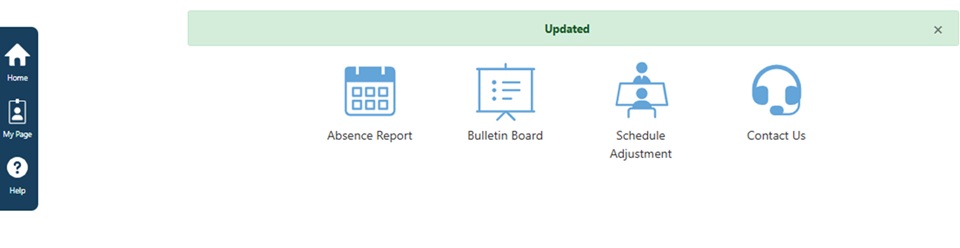
学校から届くおたよりを、お好みの言語に自動翻訳して読むことができます。
※在籍している学校で「多言語機能」が有効の場合にこの機能が利用できます。言語設定が表示されないなど、利用できるか分からない場合は学校のご担当者様へご確認ください。
※ This feature is only available for accounts that have been enabled by your school.
English version is below.
【LINEで登録している場合】
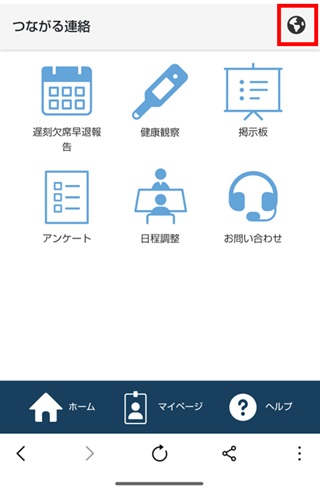
①リッチメニューからいずれかのメニューをタップいただき「ホーム」を開き、画面右上の言語設定アイコンをタップします。
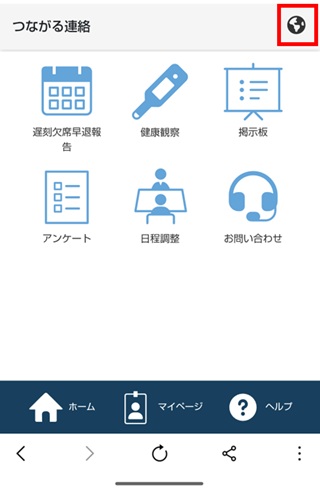
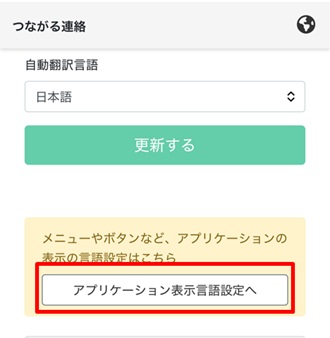
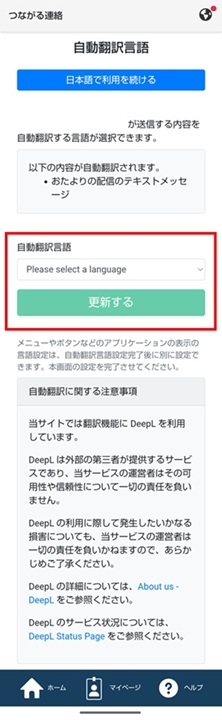
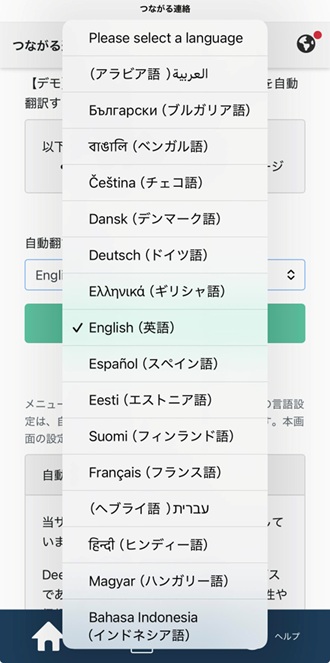
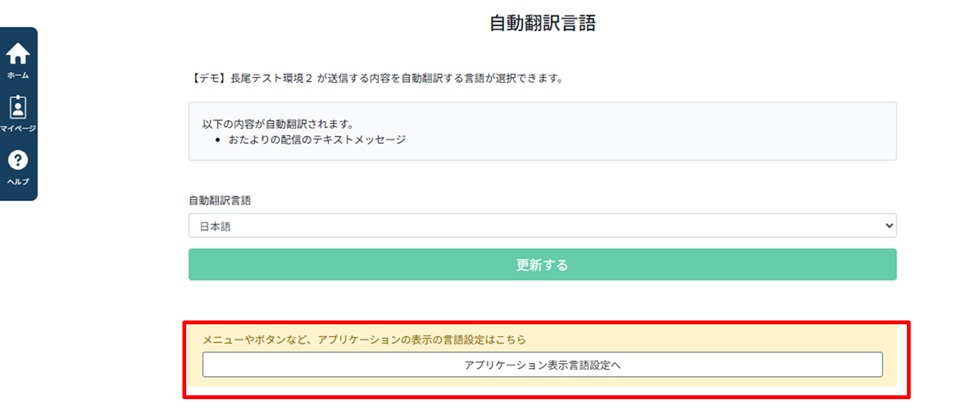
②「自動翻訳言語」からお好みの言語を選択して「更新する」をタップします。
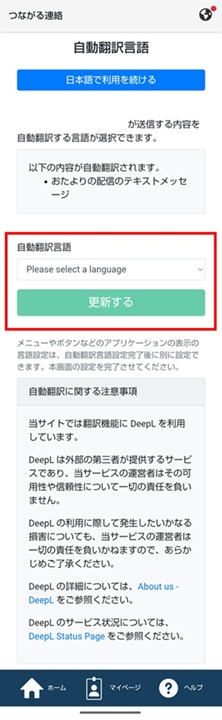
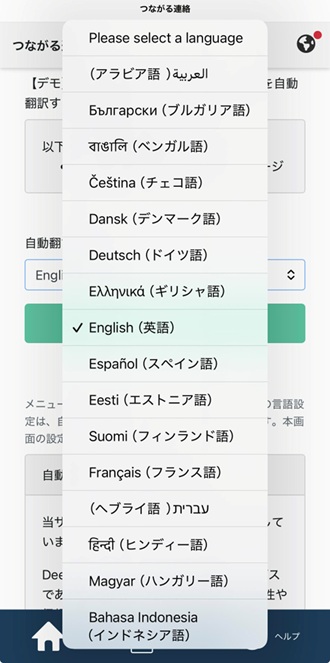
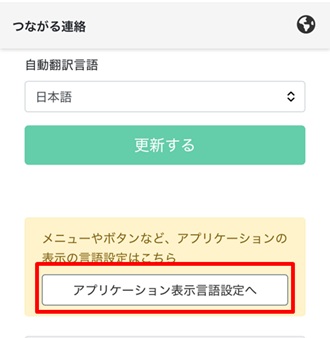
③メニューやボタンなど、アプリケーションの表示の言語設定(日本語、中国語(繁体字)、英語から選択可能です)をする場合は「アプリケーション表示言語設定へ」をタップします。
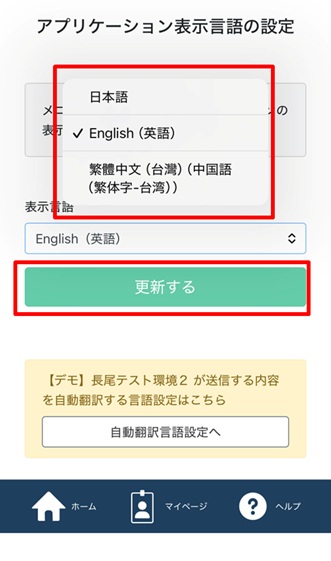
④言語を選択し「更新する」をタップします。
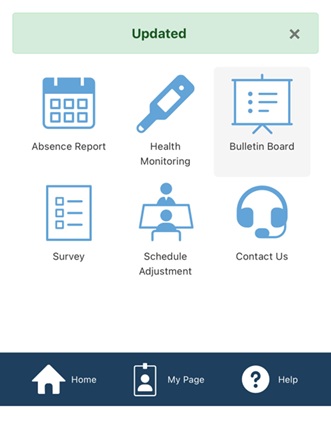
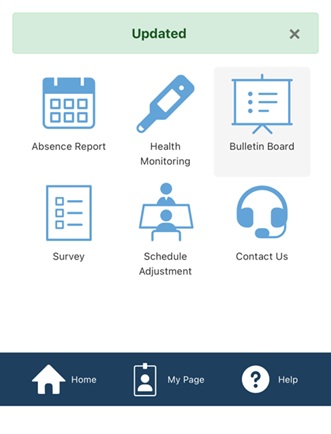
※英語を設定した場合
【メールアドレスで登録している場合】
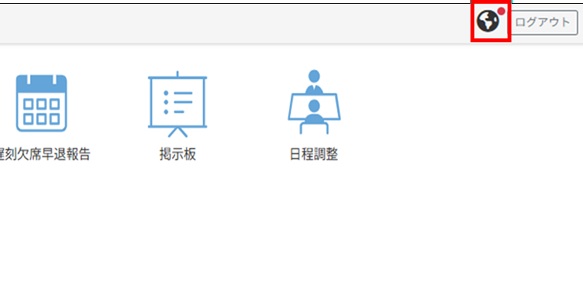
①ログイン後、「ホーム」画面右上の言語設定アイコンをクリックします。
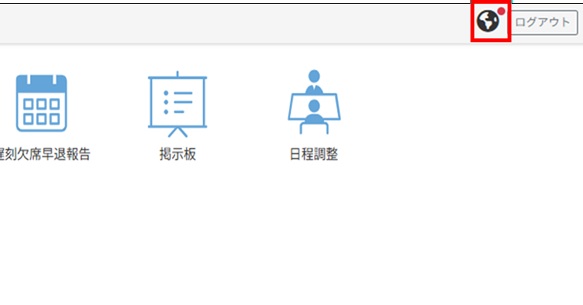
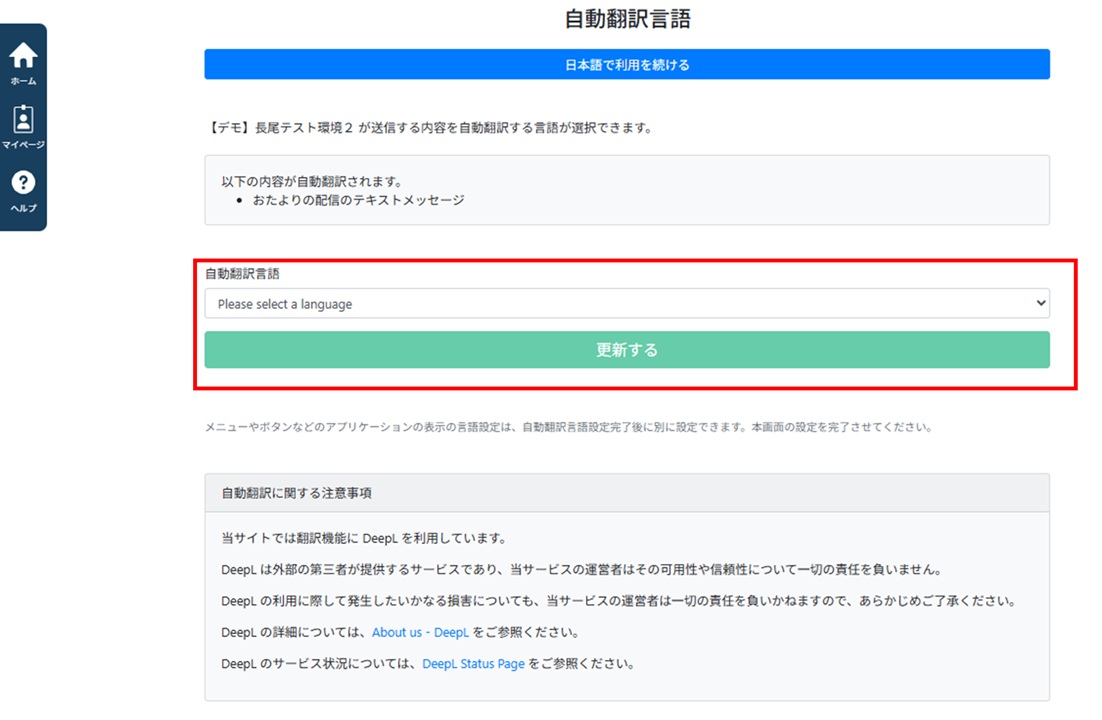
②「自動翻訳言語」からお好みの言語を選択して「更新する」をクリックします。
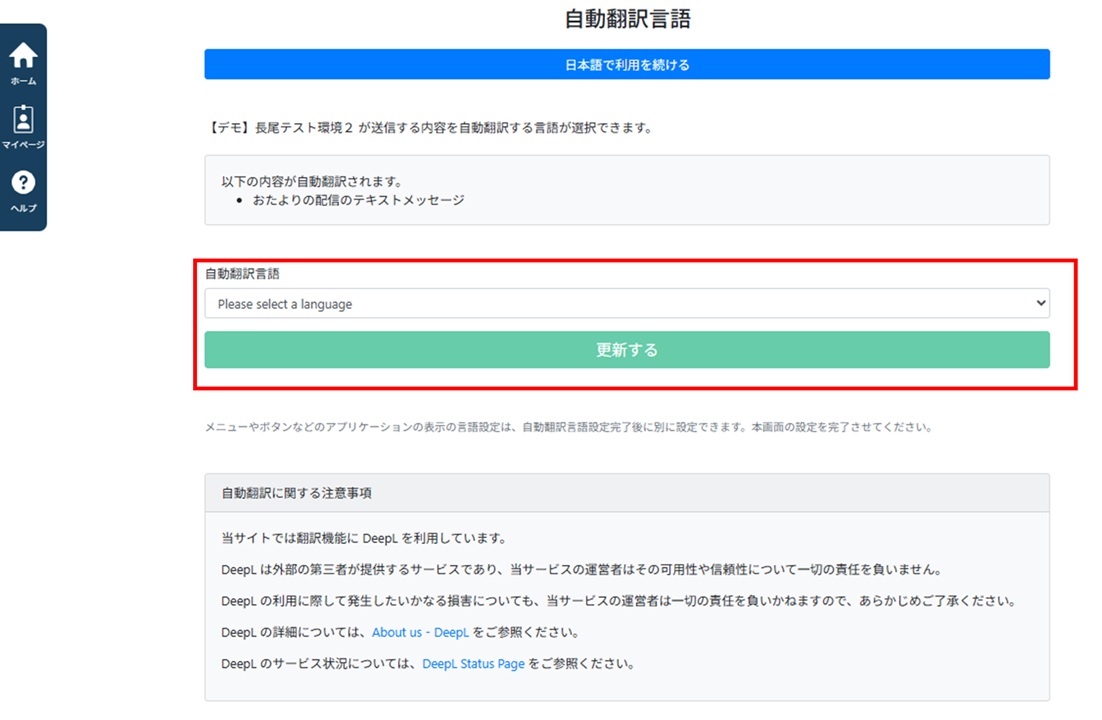
③メニューやボタンなど、アプリケーションの表示の言語設定(日本語、中国語(繁体字)、英語から選択可能です)をする場合は「アプリケーション表示言語設定へ」をクリックします。
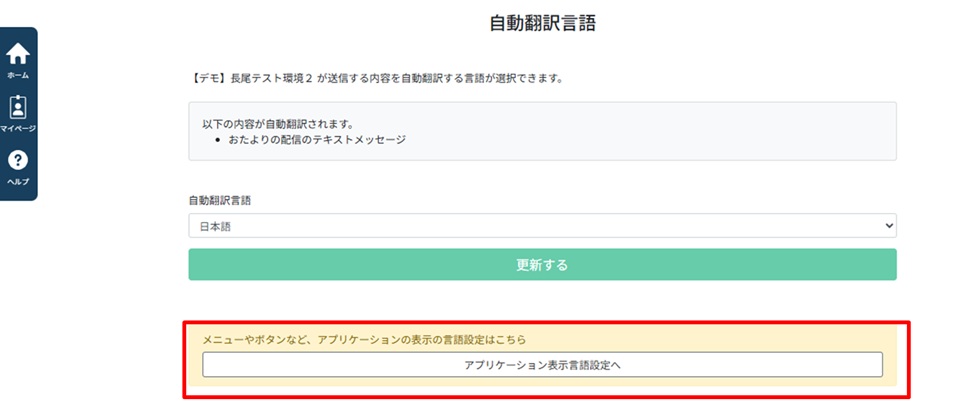
④言語を選択し「更新する」をタップします。
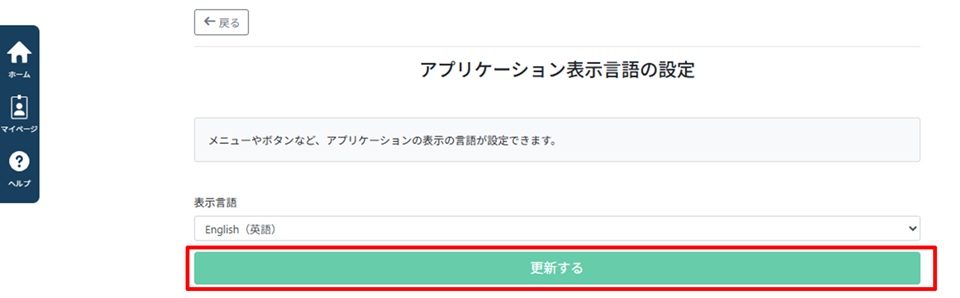
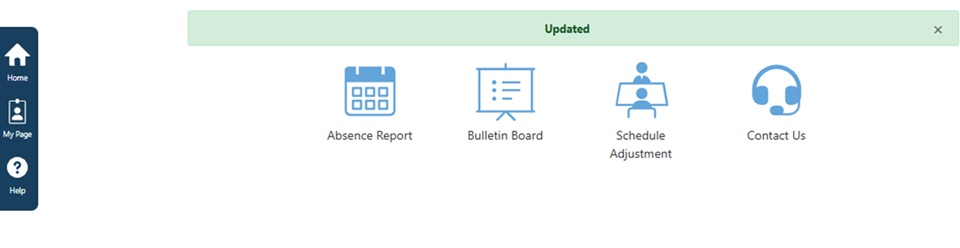
※英語を設定した場合
Automatic Translation & Language Settings
You can automatically translate and read school announcements in your preferred language.
⚠️ Important Notice
This feature is only available if the "Multilingual Function" (多言語機能) is enabled by your school. If the language settings do not appear or you are unsure if this feature is available, please check with the school staff.
【For Users Registered via LINE】
①Open the Home Screen
Tap any menu item on the LINE Rich Menu to open the "Home" screen, then tap the Language Settings icon in the top right corner.
②Select the Translation Language
Choose your preferred language under "Automatic Translation Language" (自動翻訳言語) and tap "Update" (更新する).
③Change App Display Language (Optional)
To change the language for menus and buttons within the app (available in Japanese, Traditional Chinese, and English), tap "Go to App Display Language Settings" (アプリケーション表示言語設定へ).
④Complete the Settings
Select your language and tap "Update" (更新する).
(Example: When English is selected)
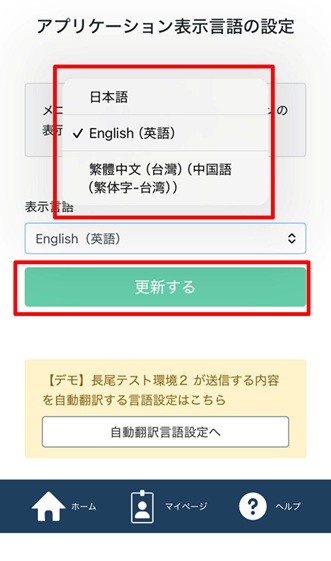
Example: English language screen
【For Users Registered via Email Address】
①Open the Home Screen
After logging in, click the Language Settings icon in the top right corner of the "Home" screen.
②Select the Translation Language
Choose your preferred language under "Automatic Translation Language" (自動翻訳言語) and click "Update" (更新する).
③Change App Display Language (Optional)
To change the language for menus and buttons within the app (available in Japanese, Traditional Chinese, and English), click "Go to App Display Language Settings" (アプリケーション表示言語設定へ).
④Complete the Settings
Select your language and click "Update" (更新する).
(Example: When English is selected)
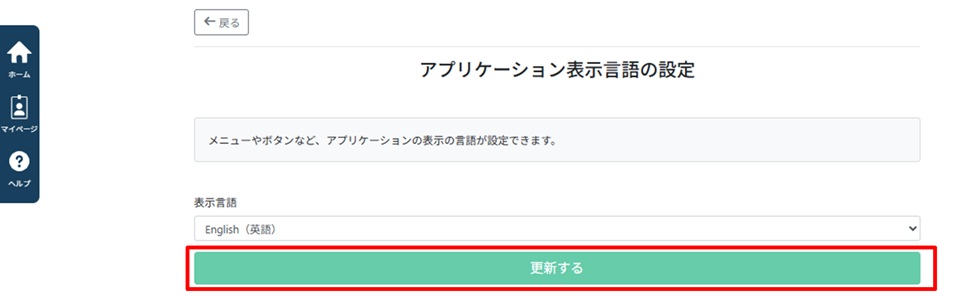
Example: English language screen